Hydraulic Check Valve
The Hydraulic Check Valve is a symbol for a check valve (non-return valve) in a hydraulic diagram. It is found in the Automation - OpenBridge section of the Perspective Component Palette as Hydraulic Check Valve (Experimental).
Note: This component is experimental: its properties may change in a later version.
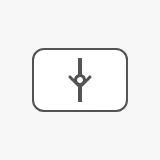
A check valve has no positions to select and no state to show, so the symbol is static: it has no readout, no alert frame and no badges, and it looks the same whatever the state of the system is. Place it on a line in a coordinate container, next to the other hydraulic symbols.
A Hydraulic Check Valve dropped from the palette with default properties looks like the image above.
Orientation
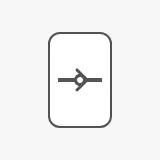
Section titled “Orientation”Set vertical to true for a check valve in a vertical line. The symbol is
rotated 90° counter-clockwise.
vertical = false (default) |
vertical = true |
|---|---|
|
 |
Properties
Section titled “Properties”| Name | Description | Property Type |
|---|---|---|
| vertical | Rotate the symbol 90° counter-clockwise, for a vertical line. Default false. |
value |
Size and Placement
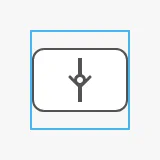
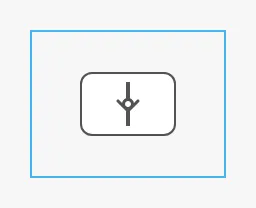
Section titled “Size and Placement”The symbol has a fixed size and is centred in the component’s box. Resizing the component does not resize the symbol. The blue frame in the images is the component’s box, as the Designer shows it when the component is selected:
| Default box, 48 × 48 | Larger box |
|---|---|
 |
 |
componentSize sets the size of the symbol, in the same steps as the
automation buttons:
regular |
medium |
large |
|---|---|---|
 |
 |
 |
The colours follow the OpenBridge palette of the session:
Properties
Section titled “Properties”| Name | Description | Property Type |
|---|---|---|
| componentSize | Size of the symbol: regular, medium or large. Default regular. |
value |
| style | Standard Perspective style object. | object |
Component Events
Section titled “Component Events”The Hydraulic Check Valve has no component events of its own. The standard
Perspective events, such as onClick, are available in the component’s event
configuration.
Examples
Section titled “Examples”Example 1 — Check Valve in a Vertical Return Line
Section titled “Example 1 — Check Valve in a Vertical Return Line”- Drop a Hydraulic Check Valve into a coordinate container, on the return line.
- Set
verticaltotrue. - Keep the box at 48 × 48 and place its centre on the line: the symbol is centred in the box, so the line passes through the middle of the symbol.
Found an error or something unclear?
Tell us what is wrong, confusing or missing on this page.
Built on the OpenBridge Design System